
Federating System and User metrics to Azure Blob storage in Azure Red Hat OpenShift
This content is authored by Red Hat experts, but has not yet been tested on every supported configuration. This guide has been validated on OpenShift 4.20. Operator CRD names, API versions, and console paths may differ on other versions.
By default Azure Red Hat OpenShift (ARO) stores metrics in Ephemeral volumes, and its advised that users do not change this setting. However its not unreasonable to expect that metrics should be persisted for a set amount of time.
This guide shows how to set up Thanos to federate both System and User Workload Metrics to a Thanos gateway that stores the metrics in Azure Blob Container and makes them available via a Grafana instance (managed by the Grafana Operator).
ToDo - Add Authorization in front of Thanos APIs
Pre-Prequsites
-
Set some environment variables to use throughout to suit your environment
Note: AZR_STORAGE_ACCOUNT_NAME must be unique
Azure Preparation
-
Create an Azure storage account
modify the arguments to suit your environment
-
Get the account key and update the secret in
thanos-store-credentials.yaml -
Create the Azure Blob container that Thanos will use to store metrics
-
Create a namespace to use
-
Add the MOBB chart repository to your Helm
-
Update your repositories
-
Use the
mobb/operatorhubchart to deploy the grafana operator -
Wait for the Operator to be ready
-
Use Helm deploy the OpenShift Patch Operator
-
Wait for the Operator to be ready
-
Deploy ARO Thanos Azure Blob container Helm Chart (mobb/aro-thanos-af)
Note:
enableUserWorkloadMetrics=truewill overwrite configs for cluster and userworkload metrics. If you have customized them already, you may need to modifypatch-monitoring-configs.yamlin the Helm chart to include your changes.If your cluster version is not 4.17, add
--set "aro.clusterVersion=4.xx"to the command below.
Validate Grafana is installed and seeing metrics from Azure Blob storage
-
Get the Route URL for Grafana (remember its https) and login using username
adminand the default password from the chart values (or the one you set via--set "grafana-cr.basicAuthPassword=<your-password>"during install). -
Once logged in go to Dashboards and expand the aro-thanos-af folder and you should see the cluster metrics dashboards. Click on the Use Method / Cluster Dashboard and you should see metrics. \o/.
Note: If it complains about a missing datasource run the following:
oc annotate -n $NAMESPACE grafanadatasource aro-thanos-af-prometheus "retry=1"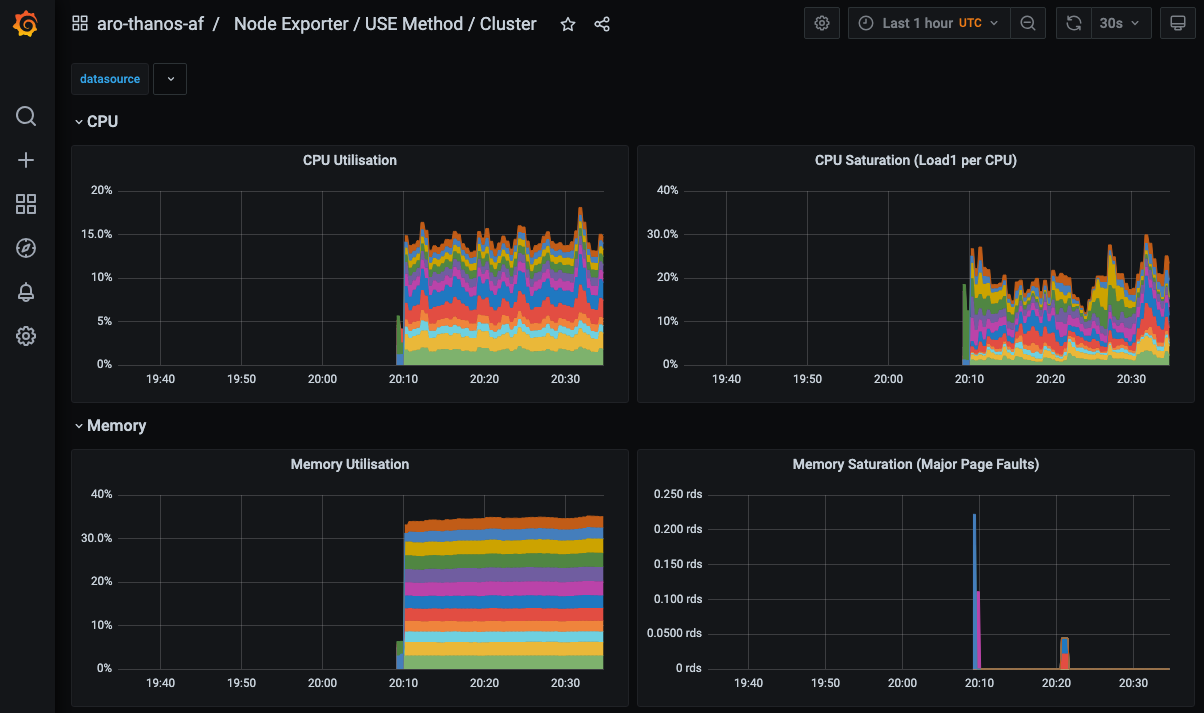
Cleanup
-
Uninstall the
aro-thanos-afchart -
Uninstall the
grafana-operatorchart -
Uninstall the
patch-operatorchart -
Delete the namespaces
-
Delete the storage account
